Welcome To My

Welcome To My

History of HTML

Have you ever thought what lies behind a web page?Which technology is used as a back end to write the web pages.We need a language to create the website.HTML is the most widely used language to design web contents for the Internet.
IBM sowed the seed for HTML in the early 1980s.Initialy,it was known by the name called GML(General Mark-up Language).It was a powerful language that aimed at creating a document in which one could mark the title,headings,text,font selection and much more.In 1986,this concept got standardization by ISO and was renamed to SGML(Standard Generalized Mark-up Language).In 1989,Sir Tim Berners-Lee and his team redesigned this language and named it as HTML(Hyper Text Mark-up Language).
HTML       : HTML is complete code package that allows a user to create web pages.It includes text and      
                    Graphics.You can add links to your web pages. Hyperlinks are the Highlighted text segments
                    or Images that connect a page to other pages on the web.Let us analyse the word HTML.
Hyper text :Hyper Text is the text used to link various web pages.It is the text on a web page,which on
                  clicking opens a new web page.
Mark-up   :It means highlighting the text either by underlining or displaying it in different colours,or both.
Language  :It refers to the mode of communication between web pages.Html has its own syntax and rules.

Structure of HTML Document:

  • The HTML document starts with<HTML> tag and ends with </HTML>tag.Each docume
    nt is considered to be a single page.Everything is written within these tags.If the commands are not enclosed in tags,then a web browser will assume the commands as simple text.The HTML page is divided into two sections:Header<HEAD>,and the body<BODY>
  • The Header is where you put information that is important about web page,but you will not able to see in your browser window.
  • The <TITLE> tag has to be given within the <HEAD> tags.It contains the title of the document.The title short and less than 64 characters.The <TITLE> tag changes the text that appears on the top of your browser,but not in the actual viewing pane.
  • The <HEAD> is the first element contained inside the <HTML> element.It contains no text within itself.
  • The <BODY> tag contains the text which gets displayed on the web page along with the other tags and attributes.In the <BODY> tag,we use formatting elements,images,heading,list etc. to enhance the appearance of the web page.
  • Every opening tag must have an ending tag.The closing tag has a forward slash(/).However,some tags have only an opening tag.
Let's know more
HTML 5 was introduced on January 18,2011.HTML 5 contains features like video playback and drag-and-drop that have been previously dependent on third-party browser plug-ins-such as Adobe Flash etc.  
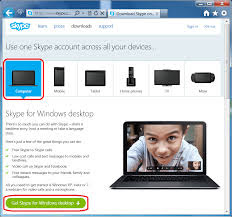

How to download and install Skype for Windows

To download and set up Skype:

  1. Go to Skype.com


  2.Click on get Skype and select the category Windows.
  3.Select the blue box that says Download Skype.

  4.A form will appear with the name Create an account or Sign in.Click on Create an account tab.
  5.Fill the required information.
  6.Enter the desired username,which will be considered as Skype Name.If the username you want already                             exists,Skype will give some helpful suggestions.
  7.Enter the desired Password,then reconfirm it in Repeat password box.
  8.After entering password,type the security text in the text box.(This is to confirm that you are a real person,not a computer setup for spamming.)
  9.Review the term of service and click I agree-Continue tab.Now,your account will be created and Skype will begin downloading the setup application.
  10.When the downloading is completed,open Skype.setup.exe file.Depending on your download settings,you might find the file either on the desktop or in your browser's Downloads window.
  11.You will find the Installing Skype window on the screen.Select the language and click on I agree - next button to continue.
  12.The download will take couple of minutes.You will check the process of installation by watching the green bar at bottom.
  13.When the installation is completed,a new login window will open.Enter your username and password,and then click on Sign me in tab.
  14.The Skype window will open.When you open Skype for a new session,the window will look like as shown in the next page.
  15.Click on continue tab.A new Skype window will appear were you can check your sound and video settings.Click on continue tab.
  16.Add a profile picture and click on Start using Skype tab in the next windows.
  17.To add contacts of Skype users,Click on Add a contact tab or select Contact>Add contacts options.
  18.Enter the e-mail phone number,full name and Skype name of a person in Add a contact window.
  19.If one match is found and the person is same whom you are looking for,click on Add tab.
  20.If more than one contacts matches.Click Add Contact below the person you want to add.
  21.Once the contact is added,the next step will be to send the request.Click on Send request tab.A page appears confirming that your contact request has been sent.
  22.Skype allows you to chat with people,similar to instant message or you can call people and speak to them.It also allows for video during calls.
  23.To make a call,click on the contact you wish to call.When the contact appear you will have two green buttons.to choose from.Click on either the green call button.This will allow you to call your contacts and talk to them either with or without video.


https://play.google.com/store/apps/details?id=com.skype.android.access&feature=more_from_developer